> For the complete documentation index, see [llms.txt](https://docs.omni.integratedcommerce.io/llms.txt). Markdown versions of documentation pages are available by appending `.md` to page URLs; this page is available as [Markdown](https://docs.omni.integratedcommerce.io/hosted-payment-form/screens.md).
# Form and response screens
What the customer sees in the form, and on the default success, issue, and expiry screens.
## The payment form
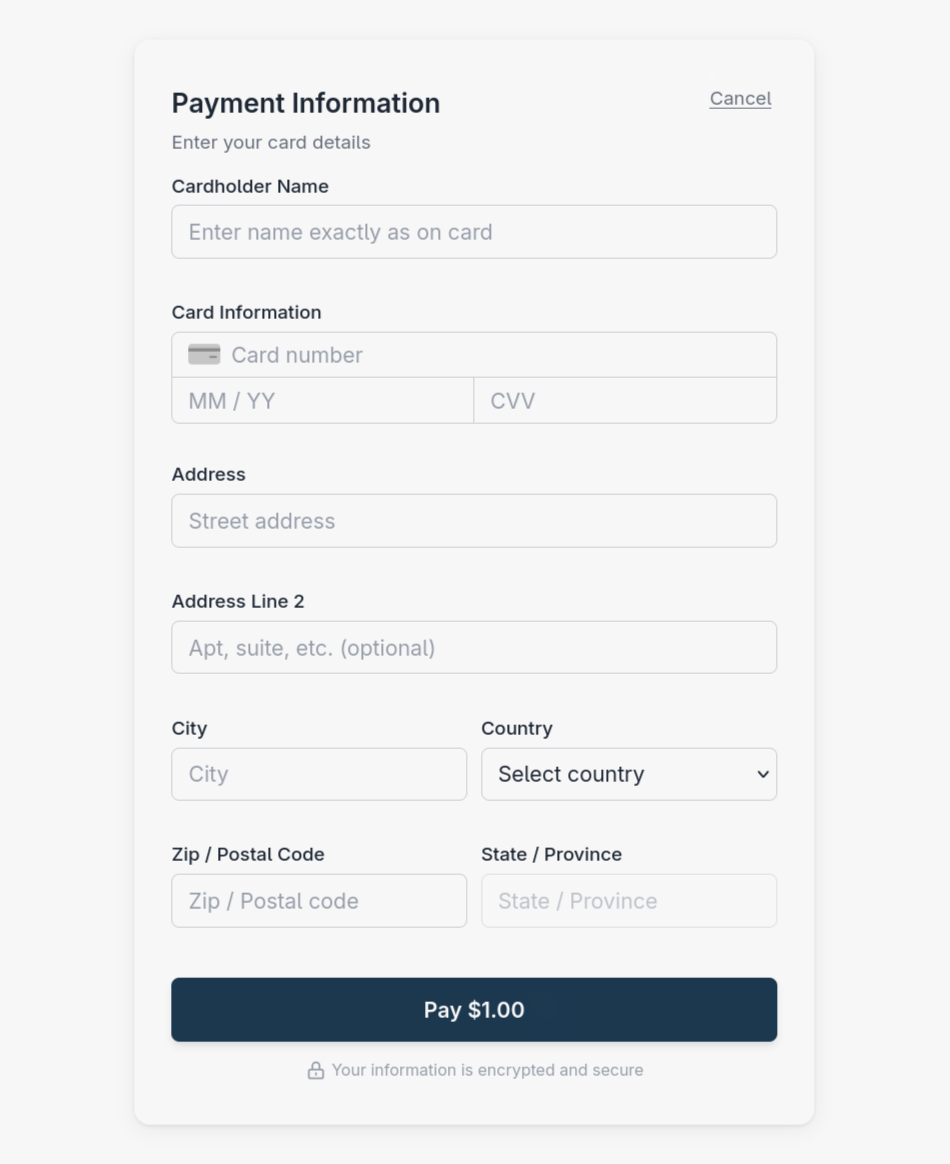
For card sessions, the Hosted Payment Form collects:
* Cardholder name
* Card number, expiration date, and security code
* Billing address details
The form is responsive and works on mobile, tablet, and desktop devices.
The card payment form in full billing mode.
How much billing information appears is controlled by [`formConfig.billingInfoCaptureLevel`](/hosted-payment-form/form-configuration.md).
### ACH bank transfers
For ACH sale and tokenization sessions, the form shows a Personal Account / Business Account toggle above the name fields. Personal Account is selected by default and collects first, optional middle, and last name. Selecting Business Account replaces those fields with a required Business Name field.
Both choices collect the routing number, account number, Checking or Savings account type, and full US billing address. See [Personal and business accounts](/payments/ach.md#personal-and-business-accounts) for name requirements and selection behavior. The same controls appear in the Payment SDK.
## Default success and issue screens
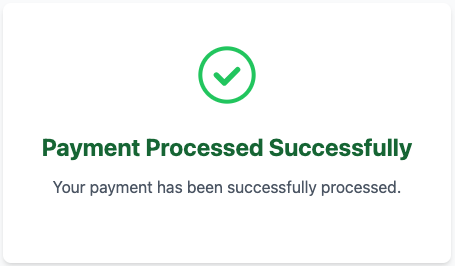
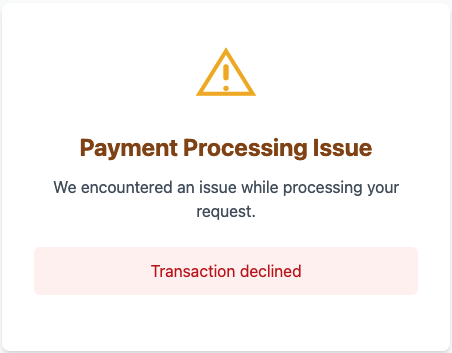
When no `returnUrl` is provided and the `useJavaScriptCallback` flag is not used, customers will see success or issue screens that provide immediate visual feedback about their transaction status.
{% columns %}
{% column %}
Success screen shown after completed payment.
{% endcolumn %}
{% column %}
Issue screen shown when payment problems occur.
{% endcolumn %}
{% endcolumns %}
## Session expiry screen
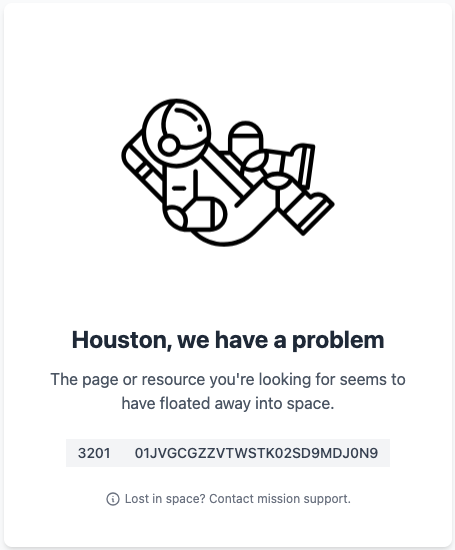
An expired or invalid payment session can show an error screen such as this one:
An error screen for an unavailable session.
{% hint style="info" %}
Sessions expire 10 minutes after creation, at `expirationTimestamp`. An invalid or expired session can show an error page or produce an error callback, depending on when it is detected. See [Best practices](/hosted-payment-form/best-practices.md#handle-timeouts-gracefully).
{% endhint %}
## Taking control of the completion experience
These default screens are the fallback. To keep the customer inside your own flow, supply a `returnUrl`, use `useJavaScriptCallback`, or both - see [Flow completion](/hosted-payment-form/hosted-payment-form.md#flow-completion).