> For the complete documentation index, see [llms.txt](https://docs.omni.integratedcommerce.io/llms.txt). Markdown versions of documentation pages are available by appending `.md` to page URLs; this page is available as [Markdown](https://docs.omni.integratedcommerce.io/going-live/wallets.md).
# Apple Pay and Google Pay
Domain validation for Apple Pay and Google Pay.
To enable Apple Pay and Google Pay on your website, your domain must be validated.
{% hint style="info" %}
Wallet buttons are rendered by the [Payment SDK](/payment-sdk/payment-sdk.md), and only for card-based sale transactions (`POST /transactions/virtual-sale`). They are not displayed for authorization, tokenization, or ACH sessions.
{% endhint %}
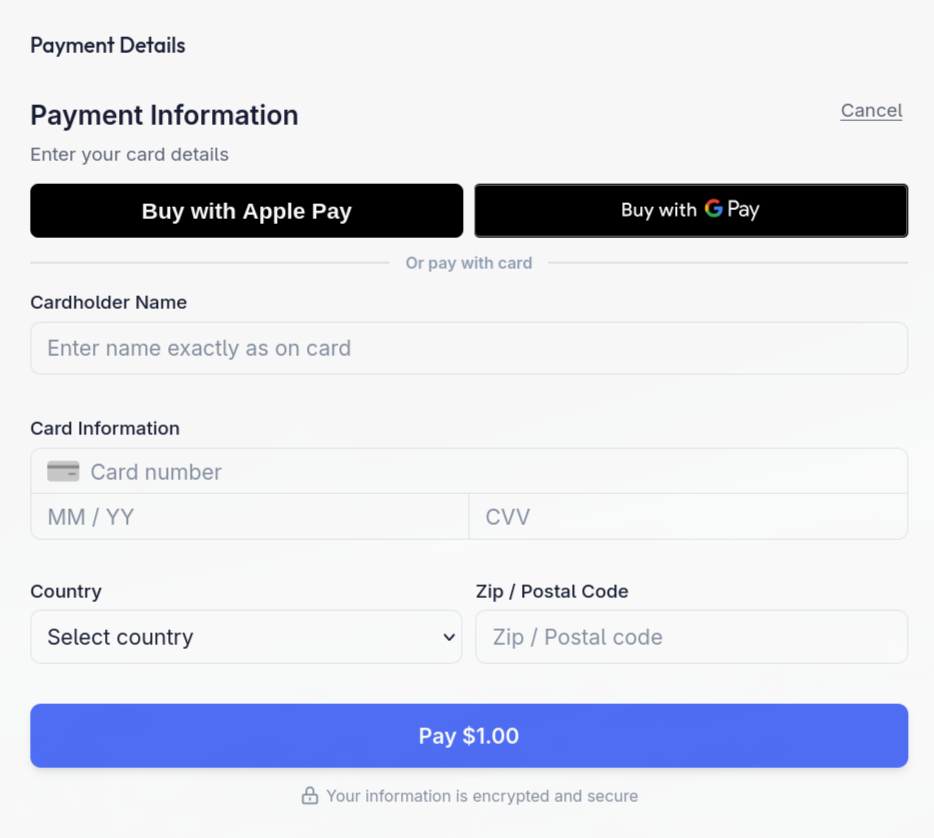
Customers can select an available wallet or enter their card details.
## The validation process
{% stepper %}
{% step %}
## Provide your domain and complete SDK integration
Share the domain or domains where Apple Pay and Google Pay will be enabled.
Google Pay domains are validated automatically. Apple Pay domains must be validated by uploading a validation file to your domain.
{% endstep %}
{% step %}
## Receive the validation file
Fiska generates and sends you the Apple Pay domain validation file.
{% endstep %}
{% step %}
## Host the validation file
Upload the file to your domain at:
```
/.well-known/apple-developer-merchantid-domain-association
```
{% endstep %}
{% step %}
## Verify it is reachable
Verify that the file is publicly accessible by visiting:
```
https:///.well-known/apple-developer-merchantid-domain-association
```
{% endstep %}
{% step %}
## Domain verification completes
Once the file is publicly accessible, your domain will be verified during the integration [certification](/going-live/go-live.md) process.
{% endstep %}
{% endstepper %}
{% hint style="info" %}
**Note:** Apple Pay is automatically supported for shared domain setups (for example `https://partner.com/merchant`).
{% endhint %}
## Troubleshooting
If wallet buttons do not appear, check in this order:
1. The session is a card-based **sale** - wallets are not shown for auth, tokenization, or ACH.
2. The corresponding `wallets` flag is not set to `false` in your [SDK configuration](/payment-sdk/configuration.md).
3. The customer's browser and device support the wallet.
4. The validation file is publicly reachable at the exact path above, over HTTPS, with no redirect.
Wallet flow failures surface as SDK error codes `6500` (`SdkWalletError`) and `6501` (`SdkWalletProcessingFailed`). See [SDK error codes](/payment-sdk/error-codes.md#wallet-6500-6599).